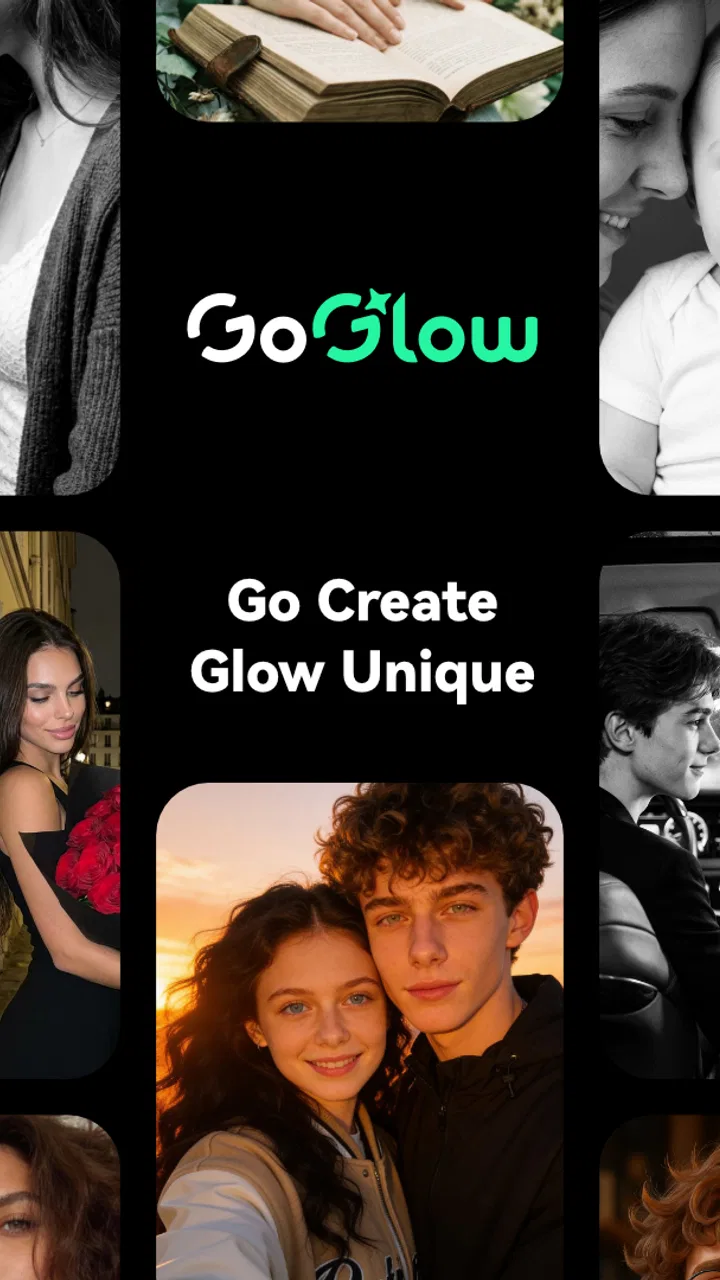
GoGlow
- 4.6
- Rating
- 50.00K
- Installs
- Free
- Price

 Analysis by App-foxy
I approached GoGlow as a practical photography tool rather than a novelty generator. Its central idea is simple: start with a visual request and turn it into an AI-created image or video. That makes it interesting for anyone who regularly needs a quick concept, social post, mood board, visual joke, or creative starting point but does not have the time or equipment to make everything manually.
My first impression is that this is an app for moving from a blank screen to an idea quickly. It is not a replacement for a camera, a full photo editor, or a professional video suite. Instead, it sits between inspiration and finished content. The useful question is not whether it can create something attractive in isolation, but whether the result fits the job I actually want to complete.
GoGlow is a free photography app from NGMOB PTE LTD, with optional in-app purchases ranging from $7.99 to $99.99 per item. It is rated for Everyone and runs on Android 7.0 or later. The current version is 3.0.4, and its average rating is 4.3 from around 79 ratings, with over 10K installs. Those figures suggest a small but active audience rather than a long-established mainstream editor.
You May Also Like

 AccuWeather: Weather Radar
AccuWeather Review: A Quick, Clear Forecast for Everyday Decisions
For everyday plans, the best forecast is the one you can understand quickly. AccuWeather makes rain timing, radar, and local conditions easy to act on, with a few trade-offs.

 Hill Climb Racing
Why Hill Climb Racing Still Turns Crashes Into One More Run
A tiny car, a bumpy hill and one more upgrade: Hill Climb Racing keeps resurfacing because its simple chaos makes every near-miss feel personal.

 AliExpress - Shopping App
AliExpress Makes Global Shopping Feel Personal, but Shoppers Bear the Risk
AliExpress turns a global marketplace into a pocket-sized discovery engine. Its reach is useful, its shopping loop compelling, and its trade-offs easy to miss.

 Lords Mobile: Kingdom Wars
Lords Mobile Is a Kingdom-Building Routine, Not a Quick Match
A case-by-case verdict on the building, battles, device demands, and social commitments that make Lords Mobile rewarding for some players and exhausting for others.

 PDF Scanner app - TapScanner
TapScanner Makes Paperwork Easier to Capture, Check, and Share
TapScanner makes scanning with a phone feel less like a rescue operation and more like a dependable step in getting work done. Its capture tools are useful, though not flawless.

 Block Blast!
 Shows How Much a Puzzle Game Can Leave Out
A quiet grid game shows why puzzle players increasingly value instant clarity, repeatable skill and low-pressure play—and where the genre still needs to catch up.
More From Our News Desk
View All News


From a rough idea to a usable visual
I use this section to focus on the moment a loose concept becomes something I can actually assess and use. A helpful habit is to decide the visual’s job before refining its look: a background, a presentation image, and a playful clip each need different choices. That small distinction makes the next steps more purposeful and helps me judge whether the result is ready to keep or needs another pass.
Starting with the right kind of input
The quality of an AI visual workflow usually begins before the generation button. I get better results when I decide what the image needs to do first. A request such as “a nice sunset” leaves too much open. A more useful starting point identifies the subject, setting, mood, framing, and intended use. For example, I might need a warm vertical image for a travel post, a clean background for a product concept, or a short atmospheric clip for a story.
That planning matters especially with GoGlow because an AI generator can produce a visually appealing result that is still wrong for the purpose. A dramatic image may have the wrong composition for text overlay. A detailed scene may be too busy for a profile banner. A realistic-looking object may contain small visual mistakes that only become obvious when I inspect it closely.
I recommend treating the first request as a draft rather than a final instruction. I keep the wording focused and describe one main subject. If I want a person, I specify the pose and environment. If I want an object, I mention its position and the background. If the output is intended for a particular social format, I also think about whether the subject should sit in the center or leave empty space around it.
Working through the generation stage
The appeal of GoGlow is the short distance between intention and output. Instead of opening a camera, arranging lighting, finding a location, and editing the result, I can begin with a concept. This is particularly useful when the visual does not need to document reality. A fictional room, an imagined outfit, a stylized landscape, or a quick visual reference can be created without gathering physical materials.
For a realistic everyday scenario, imagine preparing a small presentation about a weekend trip. I may have the text ready but no suitable image for the opening slide. GoGlow can serve as a fast way to explore a coastal scene, a city atmosphere, or a travel-themed composition. I would not treat the generated picture as proof of a real location, but it can help establish the tone of the presentation or give me a direction for later photography.
Another useful workflow is brainstorming several visual directions before choosing one. I can begin with a broad concept, note which parts work, and then narrow the next request around the strongest elements. The important habit is to compare outputs for usefulness, not just beauty. A less spectacular image with clear space for lettering may be better than a more impressive one that cannot be used in the layout.
Video generation adds a different kind of expectation. A moving result has to remain coherent across time, not merely look good in one frame. I would use GoGlow’s video side for atmosphere, transitions, or short creative inserts rather than demanding a complete edited production. The handoff from generated material to a normal video editor is still important: trimming, arranging, adding sound, and checking the final format are separate jobs.
Inspecting the result instead of accepting it immediately
One of the most important habits with AI imagery is zooming in before sharing. At a glance, an image can look finished while small details reveal problems. I check hands, faces, text, repeated patterns, object edges, and the relationship between foreground and background. I also look at whether the subject is actually positioned where I need it. This inspection step is easy to skip when the first preview feels exciting.
Text deserves special caution. If I need a poster, invitation, thumbnail, or product label, I prefer generating the visual background first and adding exact wording later in a dedicated editor. AI-generated lettering can be inconsistent, and correcting it afterward is usually faster than trying to force a perfect sentence into the original request.
The same separation helps with branding. GoGlow may be useful for exploring color, lighting, and visual mood, but a business asset still needs a final pass in a tool that gives precise control over logos, fonts, spacing, and brand colors. I see the app as a creative source, not the entire production pipeline.
Handoffs between GoGlow and familiar tools
The most realistic way to use this app is alongside the tools already on my phone. GoGlow handles the imaginative starting point. A standard gallery is better for sorting and comparing saved results. A conventional photo editor is better for cropping, correcting, adding text, and adjusting the final composition. A video editor is better for sequencing clips and preparing a finished post.
This handoff is not a weakness unique to GoGlow; it is a consequence of using generative media. The generator makes possibilities, while the final editor makes decisions. Problems appear when I expect one app to perform both roles with equal precision. If I only need a quick visual to send in a chat, the extra step may be unnecessary. If the image is going into a public campaign, the extra step is essential.
I also recommend naming or grouping saved outputs as soon as a project begins. Generating several variations can quickly create a confusing camera roll. Keeping the strongest candidates together makes it easier to remember which version had the best framing and which one still needed correction. This is a small workflow improvement, but it saves more time than repeatedly recreating an almost-right prompt.
What the finished result is good at
GoGlow is strongest when speed and imagination matter more than documentary accuracy. It can help me visualize an idea before investing in a photo shoot, create a temporary image for a personal project, or produce a starting point for a design. It is also a friendly option for someone who finds traditional editing intimidating and would rather describe an idea than learn a large set of controls.
For social content, I would use it to generate a background, a themed visual, or a creative variation that supports a caption. For personal use, it can make invitations, playful concepts, and visual experiments more engaging. For study or work, it may help illustrate an abstract topic when finding an appropriate stock image would take longer.
The result should still be judged against the purpose. If I need a faithful photograph of a person, location, document, or physical product, a real camera image is the better choice. If I need a polished advertisement with strict visual consistency, a professional design workflow offers more dependable control. GoGlow earns its place when the goal is to explore or communicate an idea quickly.
Where the workflow starts to break
The first point of friction is precision. Natural language is flexible, but visual requirements often are not. I may know exactly where an object should sit or how a face should look, yet a generated result can interpret the request differently. Repeating the same idea with slightly altered wording may improve the direction, but it can also become a trial-and-error process.
The second issue is consistency across multiple assets. Creating one attractive image is easier than creating a set that shares the same character, object, lighting, and style. Anyone building a sequence, carousel, or recurring series should inspect every result carefully. Small differences that are harmless in one picture can become distracting when the images appear together.
Video raises the cost of mistakes because movement exposes inconsistencies that a still image can hide. I would keep generated clips short and use them where a little visual motion is enough. For longer storytelling, precise editing, reliable continuity, and audio control matter more than the convenience of a single generation step.
There is also a practical cost consideration. The app itself is free to start, but optional purchases are available, priced from $7.99 to $99.99 per item. I would test the basic experience with a real project before paying for anything. The right value depends on how often I create visuals and whether the time saved is meaningful. Someone who generates occasionally may prefer free manual alternatives, while a frequent creator may find paid access easier to justify.
Who should use it, and who should choose something else
I think GoGlow is a good fit for casual creators, students, social media users, writers, and anyone who often needs a visual idea before they have a finished design. It is especially appealing if the main obstacle is a blank canvas rather than a lack of editing controls. The Everyone age rating also makes it approachable for a broad audience, although adults should still guide younger users toward sensible and respectful creative use.
I would be more cautious about recommending it to photographers who want manual exposure, lens, and color control. A traditional camera app is better for capturing real moments. It is also not my first choice for detailed retouching, typography, compositing, or professional color work. Those tasks benefit from tools built around direct adjustment rather than generated interpretation.
Compared with stock-photo services, GoGlow offers more freedom to request an unusual scene, but stock images are often more dependable when I need a recognizable real-world subject. Compared with conventional editors, it reduces the effort of creating the initial visual but gives me less exact control over every element. Compared with a full video editor, it can help supply creative material but does not replace the editing stage that turns clips into a complete production.
My practical approach to getting better results
I would begin with a purpose, not a style. First I decide whether the output is a background, a portrait concept, a product idea, a social post, or a moving visual. Then I describe the subject and composition. After that, I create variations only when there is a clear reason to compare them. This prevents the workflow from becoming endless browsing through attractive but unusable results.
I also keep important wording outside the generated image. Exact names, dates, prices, instructions, and brand messages belong in a normal text layer. This makes corrections easy and keeps the generated visual focused on atmosphere and composition. For a presentation or post, I leave intentional empty space rather than asking the generator to fill every part of the frame.
Finally, I make a final-use check before exporting or sharing. I ask whether the image communicates the intended idea, whether visible details look coherent, whether the crop works on the destination screen, and whether the result could be mistaken for a real photograph when that would be misleading. These checks turn GoGlow from a button I press for amusement into a tool I can use responsibly.
My verdict after following the complete workflow
GoGlow is a convenient entry point into AI image and video generation, especially when I need to move from an idea to a visual without setting up a traditional shoot. Its best value comes from speed, experimentation, and the ability to create material that would be difficult to photograph immediately. The app is most satisfying when I accept that the first output is a draft and give myself time to inspect, refine, and finish it elsewhere when necessary.
The free starting point makes it easy to try, while the optional purchases mean I would evaluate my actual usage before spending money. With a 4.3 average and a growing audience, it appears to have found a useful place among lightweight creative apps, but I would not confuse that convenience with professional-level control.
My recommendation is straightforward: try GoGlow if you want fast visual brainstorming, social content ideas, or imaginative images and short video material. Skip it if your priority is exact photography, reliable continuity, advanced retouching, or precise graphic design. For me, it works best as the first stage of a creative workflow—the spark that gets an idea moving—followed by careful human judgment before the result reaches anyone else.
FAQs for GoGlow
01What is GoGlow and what features does it offer?
GoGlow is a dynamic photo editing app designed to enhance your images with vibrant filters, powerful editing tools, and creative effects. It includes features like AI-powered enhancements, customizable overlays, and a user-friendly interface, making it ideal for both amateur and professional photographers.
02Is GoGlow free to download and use?
GoGlow offers a free version with basic features, but to unlock its full potential, including premium filters and advanced editing tools, users can opt for a subscription service. This model allows users to try the app before committing to any payments.
03Which devices are compatible with GoGlow?
GoGlow is available for both Android and iOS devices. It supports a wide range of smartphones and tablets, ensuring a smooth user experience across different screen sizes and operating systems. Regular updates keep the app optimized for the latest devices.
04How does GoGlow handle user privacy and data security?
GoGlow prioritizes user privacy by implementing strict data protection measures. The app requires minimal permissions and ensures that any personal data collected is stored securely. Users can review and manage their data preferences within the app settings at any time.
05Can GoGlow be used offline?
While GoGlow does allow for some offline editing, certain features, like downloading new filters and cloud-based photo storage, require an internet connection. Offline use is optimized for basic editing functions, ensuring users can still enhance images without connectivity.
Pros
- User-friendly interface enhances experience.
- Wide variety of filters and effects.
- Fast processing with low lag.
- Supports high-resolution exports.
- Regular updates with new features.
Cons
- Limited free version features.
- Ads can be intrusive at times.
- No offline editing capabilities.
- Occasional crashes on older devices.
- Subscription required for premium tools.

GoGlow
Gallery